Your student can start today, no account needed
They can jump straight into the games and a sample study session as a guest - no sign-up, no email, no personal info collected. It is a genuine "try it and see if it clicks" before anyone commits to anything.
Real homework becomes the quest
Once you link an account, the assignments your student is actually working on turn into a visual Quest Trail. Turning in work earns XP and Quest Keys, so the reward loop is tied to the real thing - finishing homework - not busywork inside an app. Underneath it is the assignment tracker parents see.
The hard part gets explained in their language
When a concept is not landing, the "Oracle" re-explains it using something your student already cares about - basketball, a video game, wizards, whatever they are into. The goal is understanding the "why," not handing over the answer.
You decide when the games are open
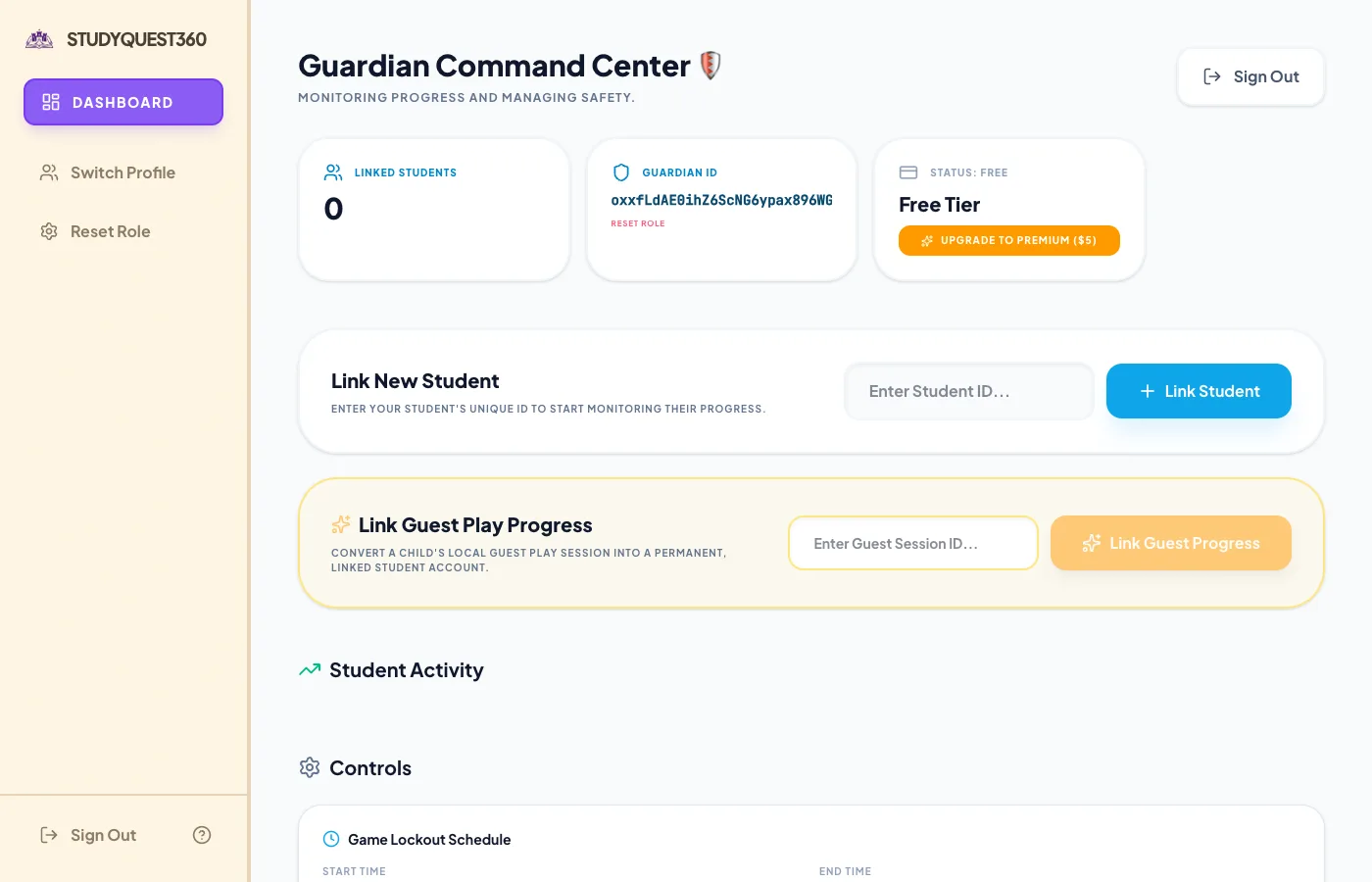
You can lock the arcade during school hours (or any window you set), so game time stays a reward for studying instead of a distraction during class. This came straight from a real problem: a kid sneaking games at school. Why a reward beats a nag is the whole game schooling argument. If you only want the games, there's a separate app for that: arcade games that run on times tables, one purchase, no ads.
You can see progress without hovering
The Parent Dashboard shows study streaks, XP over time, a history of what they have been working on, and grades for any courses you track. Enough to celebrate a good week and notice a stuck one - without standing over their shoulder. Homeschooling? The same dashboard keeps school years, hours, and the records side, for homeschoolers.